
Inference Endpoints (dedicated) documentation
Autoscaling
Autoscaling
Autoscaling allows you to dynamically adjust the number of endpoint replicas running your models based on traffic and hardware utilization. By leveraging autoscaling, you can seamlessly handle varying workloads while optimizing costs and ensuring high availability.
You can find the autoscaling setting for you endpoints under the “Settings tab” on the Inference Endpoint card.
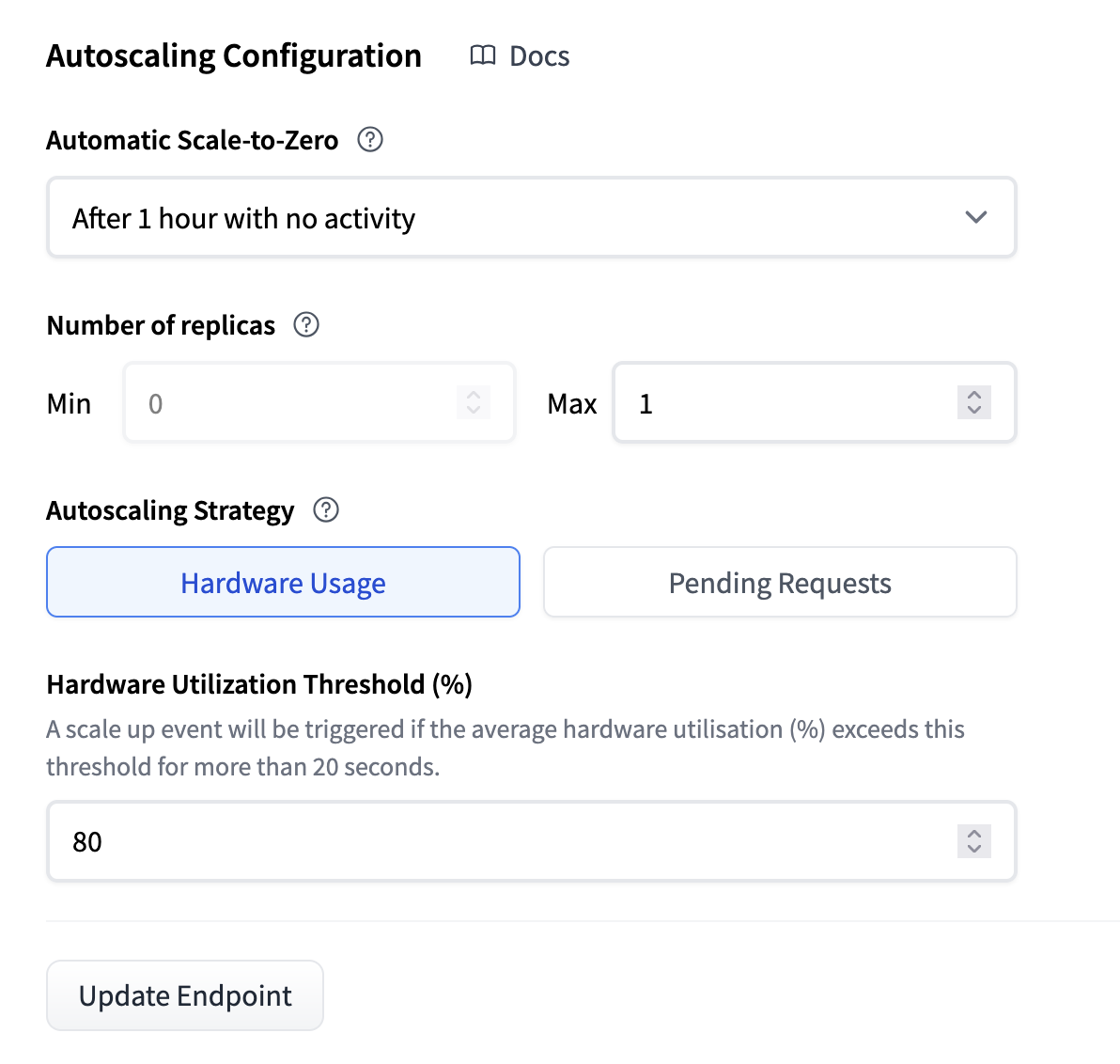
In the Analytics section of the guide, you can read more about how to track all the metrics mentioned in this documentation.
Scale to Zero
Scaling to zero means that your Inference Endpoint will go idle after a given duration (1 hour by default) of inactivity. This is typically very useful when you want to optimize for low costs or when your workloads are intermittent.
Scaling to zero replicas helps optimize cost savings by minimizing resource usage during periods of inactivity. However, it’s important to
be aware that scaling to zero implies a cold start period when the endpoint receives a new request. Additionally, the proxy will
respond with the status code 503 while the new replica is initializing. To potentially avoid this, you can also add the
‘X-Scale-Up-Timeout’ header to your requests. This means that when the endpoint is scaling the proxy will hold the request until a replica
is ready, or timeout after the specified amount of seconds. For example ‘X-Scale-Up-Timeout: 600’ would wait for 600 seconds.
Note that scaling up can take a few minutes depending on the model, which means that scaling from 0 to 1 based on a request is typically not recommended if your application needs to be responsive.
Number of replicas
With this setting, you can change the maximum and minimum amount of replicas. This means that you control the ceiling and the floor of your costs. Typically, you’d set the minimum to a value such that at the lowest amount of traffic, you’re still serving your users at an acceptable rate. And the maximum so that you stay within budget, but so that you can serve your users even at the highest points of traffic.
Note that if scale to zero is enabled, the minimum number of replicas needs to be 0.
Daily Autoscaling Schedule
On top of the static Minimum/Maximum replicas and Scale to Zero settings above, you can configure a daily schedule that automatically overrides them at specific times of day. This is useful when your traffic follows a predictable daily pattern, for example keeping extra replicas warm during business hours and scaling down (or to zero) overnight.
You can manage the schedule from the “Daily Autoscaling Schedule” section of the Autoscaling settings (when creating an endpoint, it’s located under “More options”).
Each entry has:
- A start time, always stored in UTC (the editor lets you enter and display it in your local timezone or in UTC).
- A minimum and maximum number of replicas.
- A scale-to-zero setting: “Never”, or a timeout after which the endpoint scales to zero (15 minutes to 12 hours). Choosing a timeout sets the entry’s minimum to 0.
An entry applies from its start time until the next entry’s start time, wrapping around midnight: if your last entry of the day starts at 20:00 and your first entry starts at 07:00, the 20:00 entry stays in effect overnight until 07:00 the next day.
An entry with a minimum number of replica above 0 starts the endpoint if it has scaled to zero, and its replicas are billed for as long as the entry is in effect.
While a schedule is configured, the base Minimum replicas and Scale to Zero settings are disabled, since a schedule entry is always in effect. The Maximum replicas setting stays editable, and caps every entry of the schedule.
When a schedule is configured, the Instance card shows the replicas and scale-to-zero setting of the entry currently in effect, with a clock icon next to the Autoscaling summary. Hovering over the icon shows the time range during which that entry applies.
Using the API, set the schedule field in the scaling configuration:
"scaling": {
  "minReplica": 0,
  "maxReplica": 4,
  "schedule": [
    { "at": "07:00", "minReplica": 1, "maxReplica": 4 },
    { "at": "20:00", "minReplica": 0, "maxReplica": 2, "scaleToZeroTimeout": 15 }
  ]
}
Each entry requires a unique at time (HH:MM, UTC), and maxReplica must not exceed the endpoint’s maximum; minReplica must not exceed maxReplica, and scaleToZeroTimeout only takes effect when minReplica is 0.
Autoscaling Strategy
For the autoscaling system to work well there needs to be a signal that tells when to scale up and down. For this we have three strategies.
Scaling based on hardware utilization
The autoscaling process is triggered based on the hardware utilization metrics. The criteria for scaling differ depending on the type of accelerator being used:
- CPU: A new replica is added when the average CPU utilization of all replicas reaches the threshold value (default 80%).
- GPU: A new replica is added when the average GPU utilization of all replicas over a 1-minute window reaches the threshold value (default 80%).
It’s important to note that the scaling up process takes place every minute and scaling down takes place every 2 minutes. This frequency ensures a balance between responsiveness and stability of the autoscaling system, with a stabilization of 300 seconds once scaled down.
You can also track the hardware utilization metrics in the Analytics tab, or read more about it here.
Scaling based on pending requests
In some cases, the hardware utilization is not a ‘fast’ enough metric. The reason is that hardware metrics are always slightly lagging from the actual requests. A metric that is more of a leading indicator is pending requests.
- Pending requests are requests that have not yet received an HTTP status, meaning they include in-flight requests and requests currently being processed.
- By default, if there are more than 1.5 pending requests per replica in the past 20 seconds, it triggers an autoscaling event and adds a replica to your deployment. You can adjust this threshold value to meet your specific requirements under Endpoint settings.
Similarly to the hardware metrics, you can track the pending requests in the Analytics tab, or read more about it here.
Scaling based on inference load
This strategy is in beta.
For LLMs served with vLLM or SGLang, GPU utilization is a poor scaling signal: it stays close to 100% under load and stops telling replicas apart, while pending requests only grow once the engine is already backed up. The inference load strategy scales on the inference engine’s own saturation signals instead, which react before latency degrades:
- KV cache utilization: a replica is added when the average KV cache utilization of the replicas exceeds the threshold (default 80%). This signal tracks load smoothly and sizes the deployment for steady traffic.
- Requests waiting: a replica is added when the average number of requests waiting in the engine queue per replica exceeds the threshold (default 5, decimals allowed). This signal absorbs bursts before the KV cache fills up.
Both thresholds are evaluated together, and the endpoint scales to whichever of the two requires more replicas. Scaling up happens without stabilization, adding up to 2 replicas per minute. Scaling down waits for a stabilization window of 300 seconds, then removes one replica every 2 minutes.
This strategy is available for endpoints whose engine exposes inference metrics:
- vLLM (including vLLM on AWS Inferentia2).
- SGLang, version 0.4.4 or later. If you override the container command, it must include
--enable-metrics. - Custom containers launching vLLM or SGLang with
vllm serveorsglang serve.
For any other engine, creating or updating the endpoint with this strategy is rejected with an error, and nothing is changed.
Using the API, set the inferenceLoad measure in the scaling configuration. Both fields are optional:
"scaling": {
  "minReplica": 1,
  "maxReplica": 4,
  "measure": {
    "inferenceLoad": {
      "kvCacheUsage": 80,
      "requestsWaiting": 5
    }
  }
}
kvCacheUsage is a percentage between 0 (excluded) and 100, and requestsWaiting is an average per replica that must be greater than 0.