
Hub documentation
Two-Factor Authentication (2FA)
Two-Factor Authentication (2FA)
Using two-factor authentication verifies a user’s identity with two methods, adding extra security to ensure only authorized individuals can access an account, even if the password is compromised.
If you choose to enable two-factor authentication, at every login you will need to provide:
- Username or email & password (normal login credentials)
- A second step, using one of your two-factor methods:
- One of your passkeys
- A one-time security code from an authenticator app
Enable Two-factor Authentication (2FA)
Two-factor authentication is managed from the “Two-factor authentication” section of your Authentication settings. This section lists your two-factor methods (passkeys and authenticator app) and, once 2FA is on, your recovery codes.
To turn on two-factor authentication, you first need at least one method: add a passkey from the “Passkeys” section, or set up an authenticator app (see below). If you only have passkeys, click on “Turn on” in the “Two-factor authentication” section. Setting up an authenticator app turns on two-factor authentication automatically.


Set up an authenticator app
To set up an authenticator app with a one-time password:
On the Hugging Face Hub:
- Go to your Authentication settings
- In the “Two-factor authentication” section, click on “Set up” next to “Authenticator app”
On your device (usually your phone):
- Install a compatible application. For example:
- Authy
- Google Authenticator
- Microsoft Authenticator
- FreeOTP
- In the application, add a new entry in one of two ways:
- Scan the code displayed on screen Hub with your device’s camera to add the entry automatically
- Enter the setup key displayed on screen to add the entry manually
In Hugging Face Hub:
- Enter the six-digit pin number from your authentication device into “6-digit code from the app”
- Save
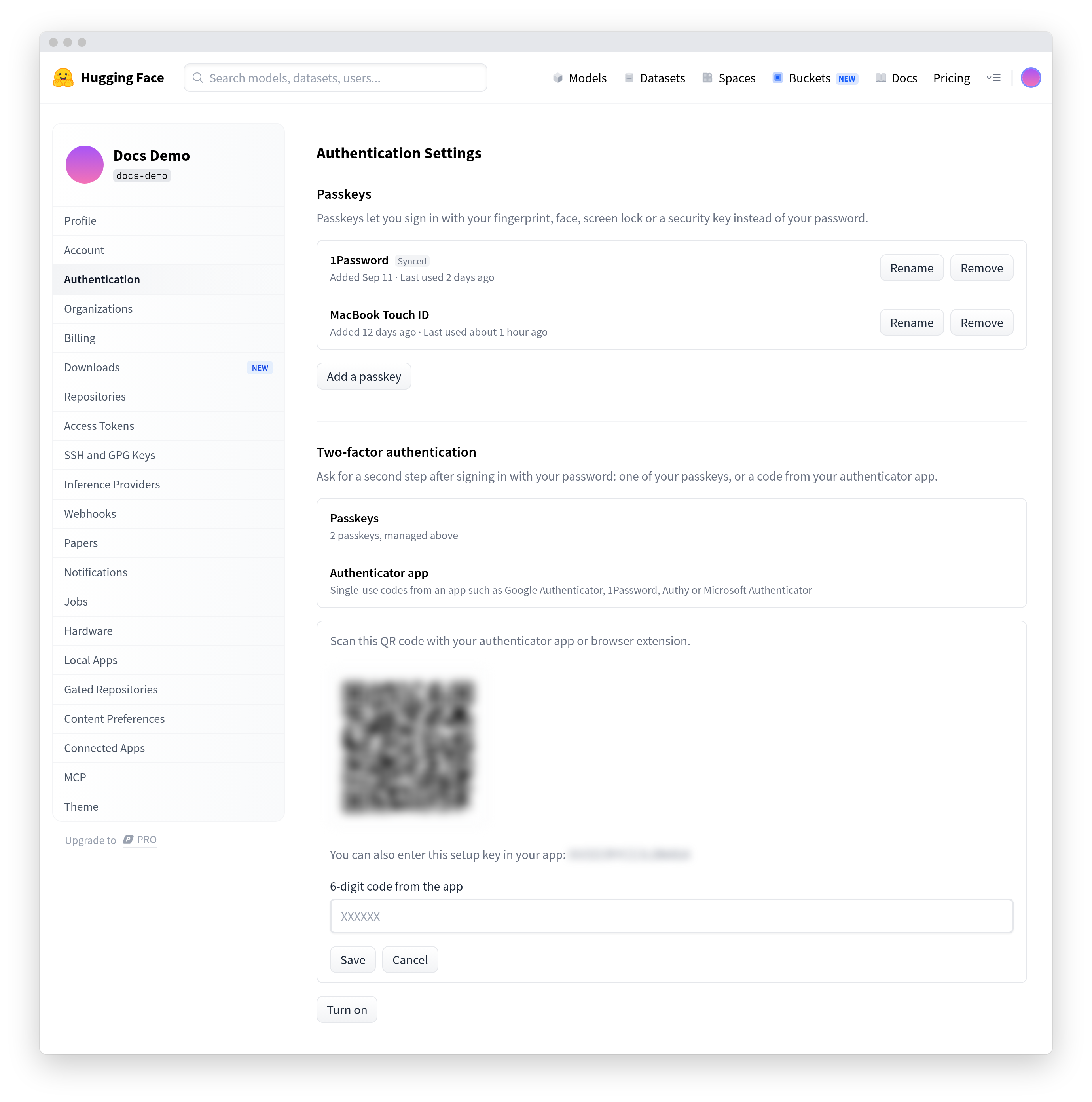

If you entered the correct pin and two-factor authentication wasn’t already on, the Hub displays a list of recovery codes. Download them and keep them in a safe place.
You will be prompted for 2FA every time you log in, and every 30 days
To move to a new authenticator app, click on “Reset” next to “Authenticator app”. To remove it, click on “Remove”: this is only possible if you have at least one passkey to use as your second step instead. Otherwise, turn off two-factor authentication.
Use passkeys
When two-factor authentication is on, any of your passkeys can be used as the second step. If you don’t have an authenticator app, your last passkey can’t be removed: set up an authenticator app or turn off two-factor authentication first.


Recovery codes
Right after you’ve successfully turned on 2FA, you’re requested to download a collection of generated recovery codes. If you ever lose access to your passkeys and authenticator app, you can use one of these recovery codes to log in to your account.
- Each code can be used only once to sign in to your account
- You should copy and print the codes, or download them for storage in a safe place. If you choose to download them, the file is called huggingface-recovery-codes.txt


If you lose the recovery codes, or want to generate new ones, you can use the Authentication settings page.
Regenerate two-factor authentication recovery codes
To regenerate 2FA recovery codes:
- Access your Authentication settings
- If you’ve already turned on 2FA, click on “View” next to “Recovery codes” in the “Two-factor authentication” section
- Click on Regenerate recovery codes
If you regenerate 2FA recovery codes, save them. You can’t use any previously created recovery codes.
Sign in with two-factor authentication enabled
When you sign in with 2FA enabled, the process is only slightly different than the standard sign-in procedure. After entering your username and password, you’ll encounter an additional prompt. When prompted, use one of your passkeys, provide the pin from your one-time password authenticator’s app, or use a recovery code to complete the sign-in process. If you have set up several methods, you can switch between them from the prompt.
If you sign in with a passkey instead of your password, you aren’t prompted for a second step.


Disable two-factor authentication
To disable 2FA:
- Access your Authentication settings
- In the “Two-factor authentication” section, click on “Turn off”.
This removes your authenticator app and recovery codes. Your passkeys are kept, so you can still use them to sign in without a password.
Recovery options
If you no longer have access to your authentication device, you can still recover access to your account:
- Use a saved recovery code, if you saved them when you enabled two-factor authentication
- Requesting help with two-factor authentication
Use a recovery code
To use a recovery code:
- Enter your username or email, and password, on the Hub sign-in page
- When prompted for two-factor authentication, click on “Use a recovery code”
- Enter one of your recovery codes
After you use a recovery code, you cannot re-use it. You can still use the other recovery codes you saved.
Requesting help with two-factor authentication
In case you’ve forgotten your password and lost access to your two-factor authentication credentials, you can reach out to support (website@huggingface.co) to regain access to your account. You’ll be required to verify your identity using a recovery authentication factor, such as an SSH key or personal access token.
Update on GitHub